 Contraction
How To Time Contractions On Android During Labor
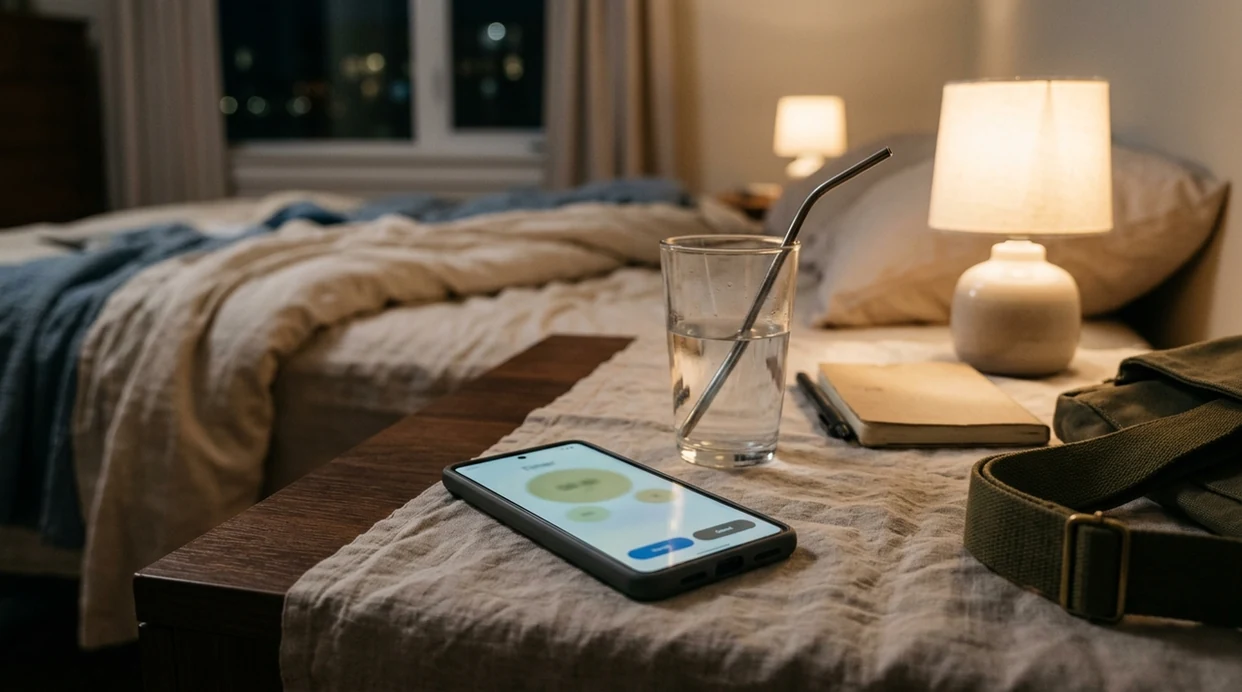
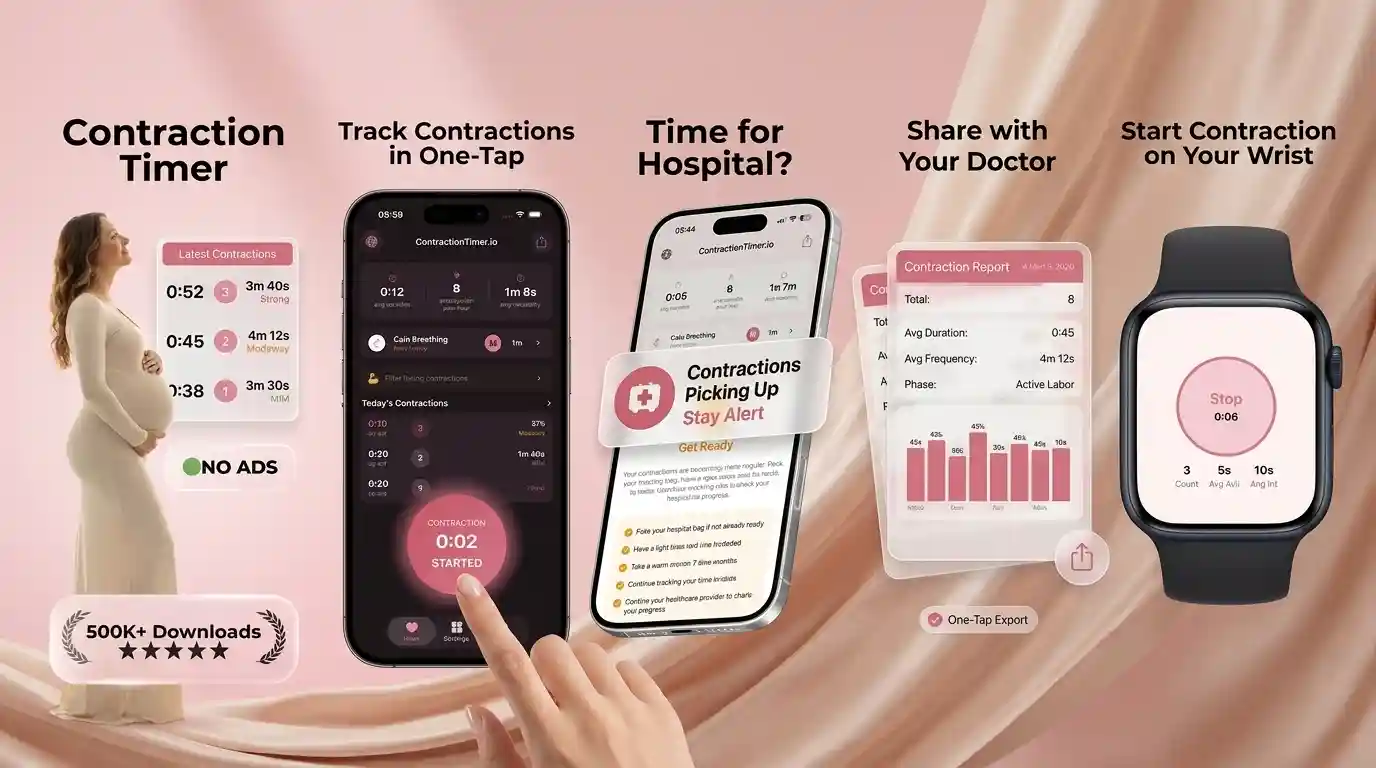
Contraction Timer (contractiontimer.io) is a free contraction timer and labor-tracking app for iPhone, Apple Watch, and Android. On Android, it helps parents and birth partners time contractions, review frequency and duration, and prepare useful details for provider calls.
Quick answer: To time contractions on Android, start the timer when a contraction begins and stop it when the tightening fully eases. A contraction timer app can then calculate duration, frequency, and patterns such as 5-1-1 so you have clear notes when you contact your provider.
Why choose Contraction Timer?
Contraction Timer is built for Android labor tracking, so it captures contraction patterns more clearly than a generic stopwatch or notes app.
- One-tap start and stop for each contraction
- Automatic duration, frequency, and interval tracking
- 5-1-1 hospital pattern alerts
- Labor phase detection based on recorded patterns
- Contraction history for calls or hospital check-in
- Partner mode for hands-free support
- Doctor reports you can share with care teams
- Offline tracking with no ads
Works on iPhone, Apple Watch, and Android. It is a tracking tool, not a medical device.
Here's how to time contractions on Android: open a dedicated contraction timer app, tap Start when a contraction begins and Stop when it ends, then review the app's duration and frequency log. Repeat for each contraction and call your provider based on their instructions, not the app alone.
Definition: Timing contractions on Android means using a mobile app or built-in stopwatch to record each contraction's start time, end time, duration, and the interval between contractions so you can identify labor patterns.
TL;DR
- Install an Android contraction timer app and tap Start/Stop for each contraction.
- Look for the 5-1-1 pattern, every 5 minutes, lasting 1 minute, for 1 hour, as a general guide, but follow your provider's specific instructions.
- Have your birth partner operate the phone so you can focus on coping, and keep a backup timing method ready.
What Android Contraction Timing Measures
Android contraction timing measures duration, frequency, and pattern change so you can describe labor clearly when you call your care team. Duration is how long one contraction lasts, from the first tightening to the full release.
Frequency is the space between contractions. Most apps calculate it from the start of one contraction to the start of the next. Some people accidentally count end-to-start spacing, which can make the rhythm look farther apart than it is. The full contraction duration vs frequency difference matters when you are reading a log at 2:17 a.m. with a half-packed bag by the door.
Pattern is the bigger picture. Are contractions getting longer, stronger, and closer together, or fading after rest? Per the CDC, 98.4% of U.S. births in 2022 happened in hospitals, so many families do some timing at home before going in. Source: CDC/NCHS, Births: Final Data for 2022, https://www.cdc.gov/nchs/data/nvsr/nvsr73/nvsr73-02.pdf.
The log gives you language, not certainty.
Android Contraction Timer Requirements Before Labor Tracking
- Charge the Android phone first. Start with more than 50% battery, or plug it in near the bed, couch, or birth ball.
- Install an Android contraction timer app before labor feels intense. Tools like ContractionTimer.io are easier to test when you are not breathing through a wave.
- Set up a backup method. The built-in Android Clock stopwatch, a notes app, or pen and paper all work if the app freezes.
- Brief the birth partner. Show them Start, Stop, and where the session log lives before contractions need real focus.
- Keep provider instructions visible. The 5-1-1 rule contractions pattern is only a guide; your midwife, OB, or birth center may give different call timing.
Car keys placed beside the timer can feel dramatic. It’s also practical.
How Android Contraction Timer Apps Calculate Duration And Frequency
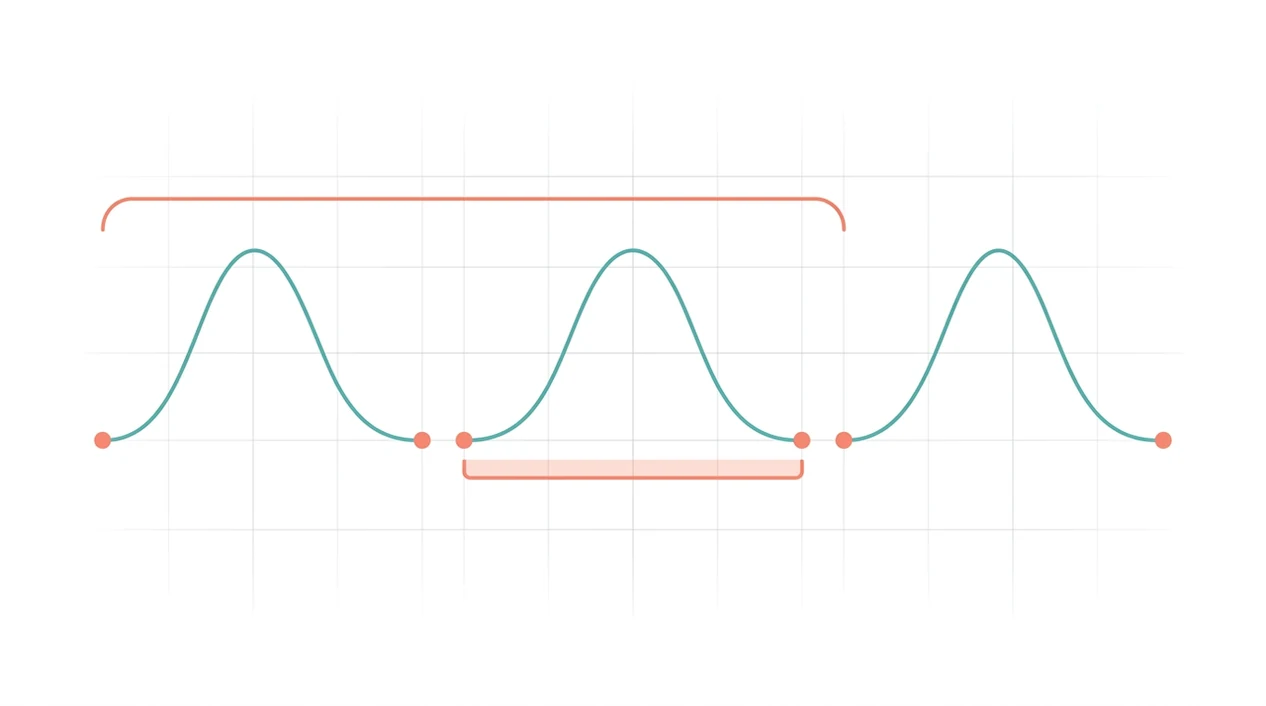
Android contraction timer apps work by tap-based event logging: each Start and Stop tap creates a timestamped entry, usually saved in local storage on the phone. The app calculates duration by subtracting the start timestamp from the stop timestamp.
Frequency is usually calculated as the start-to-start interval between consecutive contractions. That means the app compares the beginning of one contraction with the beginning of the next one. The session log then aggregates averages, recent intervals, and pattern changes. Some apps flag when the rhythm approaches common active-labor thresholds.
Good contraction timer apps deliver clean timing records and plain pattern summaries, not a diagnosis of labor progress.
Many apps store data locally, with cloud sync as an optional feature depending on the app. Apps such as ContractionTimer.io, GentleBirth, and other Android labor tools are guides only. They are not clinically validated medical devices, and they cannot tell you dilation or whether it is safe to stay home.
How To Use An Android Contraction Timer In 6 Steps
For most families, an Android contraction timer is easier than a handwritten log because it removes the start-time math during contractions.
- Open your Android contraction timer. Turn up screen brightness enough to see the button in a dim room.
- Tap Start when you feel a contraction begin. Start at the first clear tightening, not halfway through.
- Tap Stop when the tightening fully releases. Wait until your belly softens and your breathing settles.
- Rest between contractions and repeat for the next one. Sip, pee, change positions, and save your energy.
- Review the session log for average duration and frequency. Notice whether the rhythm is steady, closer together, or spacing out.
- Share or read the log to your provider when you call. Keep it simple: “They’re about four minutes apart, lasting one minute, for the past hour.”
A one-handed timer during a surge is possible. A partner is better.
When To Start Timing Labor Contractions On Android
Start timing contractions on Android when they feel regular, rhythmic, and worth pausing for. You do not need to log every random tightening late in pregnancy.
Braxton Hicks contractions are usually irregular, often painless or mildly uncomfortable, and may stop with hydration, movement, or rest. Real labor contractions tend to build a pattern. They may ask more of your breath each time. For a deeper timing decision, the guide on when to start timing contractions walks through early signs.
ACOG explains that early labor can last hours or days, so patience matters: https://www.acog.org/womens-health/faqs/how-to-tell-when-labor-begins. If your timer looks neat but your body feels uncertain, call your care team instead of trying to interpret the pattern alone.
A warm shower on the lower back can change the whole mood.
Common Android Contraction Timing Mistakes During Early Labor
The most common Android contraction timing mistakes are inconsistent taps, over-logging Braxton Hicks, and treating the app like a medical decision-maker. The data is only as clean as the timing behind it.
Logging every mild tightening can skew averages and make early labor look more organized than it is. Forgetting to tap Stop can inflate duration. Switching apps mid-session may lose earlier entries, which makes the pattern harder to explain when you call.
Do not ignore warning symptoms because the app says the pattern is “not ready.” Call your provider for bleeding, fluid leaking, decreased movement, severe pain, or anything they told you to report. Clinicians typically recommend using contraction timing alongside symptoms, pregnancy history, and direct care-team advice.
If pain intensifies, hand over the phone. Seriously. The how to time contractions basics work better when someone calm can tap consistently.
When To Call Your Provider While Timing Contractions On Android
Call your provider when your written instructions say to call, even if your Android timer has not reached 5-1-1 or the app has not shown an alert. Their advice overrides any contraction pattern rule, especially if your pregnancy has extra risks.
Call sooner for bleeding, fluid leaking, decreased fetal movement, severe pain, or any symptom that feels alarming. Also call earlier if you have been told you are high-risk, are carrying multiples, have a history of preterm labor, or had a previous labor that moved very fast. Apps can organize timing, but they cannot decide whether it is safe for you to stay home.
When you call, make the log easy to hear:
- State when contractions became regular and how long you have been timing them.
- Read the recent frequency, using start-to-start spacing if the app shows it.
- Share the average duration and whether contractions are getting stronger or closer together.
- Mention warning symptoms, water breaking, bleeding, fetal movement changes, and your pregnancy history.
- Follow the provider’s next instruction, even if it differs from the app’s suggestion.
How A Birth Partner Can Operate The Android Contraction Timer
A birth partner can operate the Android contraction timer by watching for cues, tapping Start and Stop, and reporting the pattern during a provider call. This lets the laboring person keep eyes closed, breathe through the wave, and rest between contractions.
Choose simple cues before things get intense. The laboring person can say “start” and “stop,” squeeze a hand, nod, or lift a finger. I often suggest a partner whisper back what they are doing: “starting it,” then “stopping it.” It sounds small, but it keeps the room grounded.
Put the phone on Do Not Disturb so texts and alerts do not interrupt the timer. The partner can monitor the session log and say, “The last five are about five minutes apart.” That concrete pattern is more useful on a provider call than a vague “they’re coming fast.”
Android Contraction Timer Backup Methods If The App Crashes
If an Android contraction timer app crashes, switch to the built-in Clock stopwatch, a notes app, or pen and paper. A backup matters because battery drain, accidental taps, screen locks, and app glitches happen at inconvenient moments.
The Android Clock stopwatch can work if you use the lap function for each contraction. It is not as tidy as a dedicated log, but it captures usable timing. A notes app can hold rough entries like “2:14 start, 2:15 stop.” Pen, paper, and a watch still work when the phone is charging across the room.
The most reliable backup is the one your partner can use without asking six questions. If you want a broader phone-based setup, the how to track contractions with phone guide covers low-tech and app-based options.
Limitations
Android contraction timing is useful, but it has real limits. Treat the log as supporting information, not the final answer about labor.
- Apps cannot measure contraction strength, cervical dilation, station, or fetal wellbeing.
- Accuracy depends on consistent tapping; pain, shaking, nausea, and distraction can cause missed entries.
- Different apps may define “frequency” differently, especially start-to-start versus end-to-start spacing.
- Heavy app reliance can delay calling a provider when bleeding, fluid leaking, decreased movement, or unusual pain appears.
- Battery drain, app crashes, screen locks, and accidental taps mean no Android timing setup is fully reliable.
- Most contraction timer apps are not clinically validated medical devices.
- Contraction data stored on-device may not have clear encryption, export, or deletion options.
- A tidy pattern does not always mean it is time to go in, and a messy pattern does not always mean everything is fine.
Use the timer to prepare without over-focusing. Then use your provider’s instructions.
Frequently Asked Questions
Is the 5-1-1 rule universal?
No. The 5-1-1 rule is a common guideline, but providers may give different thresholds for high-risk pregnancies, fast prior labors, twins, or planned hospital timing.
Can I use Samsung Clock as a contraction timer?
Yes. Open Samsung Clock, use the stopwatch, and tap Lap for each contraction start or stop so you have a basic timing record.
Do free Android contraction timer apps work?
Yes. Free apps, including ContractionTimer.io, can log start times, stop times, duration, and intervals; paid features are usually extras like export, cloud sync, or added charts.
Should I time Braxton Hicks contractions?
Occasional Braxton Hicks contractions usually do not need detailed logging. Start timing when contractions become regular, rhythmic, and do not settle with rest, hydration, or position changes.
How long should I track contractions before calling my provider?
Many providers suggest tracking one to two hours of regular contractions before calling. Your provider’s specific instructions override any general timing rule.
Can my birth partner time contractions for me?
Yes. A birth partner can tap Start and Stop on the Android contraction timer when you give a verbal cue, hand squeeze, nod, or other agreed signal.
What if the contraction timer app crashes during labor?
Switch to the Android Clock stopwatch, a notes app, or pen and paper. The goal is to keep recording start times, stop times, and spacing.
Is contraction timer app data private?
Most Android contraction timer apps store data locally, but privacy varies by app. Check permissions, cloud sync settings, and the privacy policy before entering sensitive notes in the ContractionTimer.io contraction timer app or any similar tool.
Which app fits which need
| Need | Best option |
|---|---|
| fast Android contraction timing with automatic duration, frequency, and 5-1-1 alerts | Contraction Timer |
| pregnancy community content and broad pregnancy articles alongside basic tools | The Bump |
| contraction-like activity monitoring with wearable hardware rather than app-only timing | Bloomlife |
| birth preparation, mindfulness, and guided relaxation during pregnancy | GentleBirth |
Quick facts
- Type
- Contraction timer & labor tracker app
- Platforms
- iPhone, iPad, Apple Watch, Android
- Focus
- Android contraction timing, duration, frequency, intervals, 5-1-1 alerts, labor patterns
- Includes
- one-tap timing, contraction history, labor phase detection, 5-1-1 alerts, partner mode, doctor reports, offline tracking
- Best for
- Parents and birth partners who need a simple Android app to time contractions during labor
- Free
- Yes
- Medical replacement
- No
People also use Contraction Timer for
Time Contractions On Android With Less Guesswork
Use Contraction Timer to start and stop each contraction, review duration and frequency, and keep a clear history for your provider. Free, ad-free, and built for labor tracking.
Download the Free App